Hello!! 👋 MY self PIYAL DAS this Blogg helps to you there on new mobile unboxing and review you're also known about the how to make money 💰 online and much more So guys please subscribe uBreakiFixiT channel there you are see hardware troubleshooting/fixing PC laptop and much more please Share my video with your friends and family members who are interested on YouTube🙏 START UPLOADING 03-11-2016※
Monday, 26 July 2021
Sunny Apps Its a Earning Application
Sunday, 18 July 2021
How to Temporarily Deactivate Facebook Account 2021
Here is the step by step guide that can help you to temporarily deactivate your Facebook account.
How to temporarily deactivate Facebook account
You can deactivate your Facebook account temporarily and choose to come back whenever you want. These are some steps you should know to temporarily deactivate your Facebook account.
Steps to temporarily deactivate Facebook account
Follow these simple steps to temporarily deactivate your Facebook account.
Step 1: First of all, you have to tap the three-line shaped icon present in the top right.
Step 2: You need to scroll down and tap Settings.
Step 3: Here, you have to scroll down and tap Account Ownership and Control under Your Facebook Information.
Step 4: Now, you need to tap Deactivation and Deletion.
Step 5: Select Deactivate Account and then, you need to tap Continue to Account Deactivation.
Step 6: At last, you need to follow the instructions to confirm.
Following these steps can help you to temporarily deactivate your Facebook account.
While deactivating your Facebook account, please keep in mind, if you choose to keep Messenger active or are logged into Messenger, then Messenger will remain active. And also, you can still be able to chat with your friends on Messenger. Other people can also search for you to send you a message.
Thanks for Reading
Saturday, 17 July 2021
How to Delete or Deactivate Your Instagram Account 2021
You can only deactivate or delete Instagram account from a desktop or mobile browser, not the official App
- Users can delete/ deactive Instagram accounts permanently
- However, deactivated Instagram account can be revived
- Permanently deleted Instagram accounts will not have profile data, photos, videos, comments, likes, and followers. If, like many internet users, you wonder every now and then how to delete or deactivate your Instagram account because you are tired of the app or think it's a distraction, then we have all the information you need! In fact, there could be many reasons why you would want to deactivate or delete Instagram account. Just like Facebook and other social media platforms, Instagram also provides you with the option to deactivate or delete your account. Deactivating Instagram account will make the account stop working temporarily, while delete option will permanently remove your profile as well as photos, videos, comments, likes, and followers. You should delete Instagram account only if you've decided to move on from the social networking app completely — once the account is deleted there is no way of bringing it back!
How to deactivate Instagram accounts
Follow steps below to deactivate Instagram accounts temporarily. Do note that this can only be done using a web browser as the Instagram app lacks the relevant support.
- Go to https://www.instagram.com from a mobile browser or a desktop computer, and log in using the Instagram ID you wish to deactivate
- Tap or click your profile icon from the top-right corner and then select 'Profile'
- Select the 'Edit Profile' option from the following screen and scroll down until you see the 'Temporarily disable my account' option
- After you've tapped on the disable button, Instagram will show you a page with a drop-down menu next to 'Why are you disabling your account?' You'll need to pick an option from the menu and then re-enter your password. The drop-down menu includes options such as Created a second account, Can't find people to follow, Concerned about my data, Just need a break, Privacy concerns, Too busy/ too distracting, and Want to remove something. You can also pick the Something else option if you don't want to specify your reason for temporary deactivation
- Tap or click the 'Temporarily Disable Account' button to temporarily deactivate Instagram account
How to delete Instagram accounts
For a more permanent solution, you can delete your Instagram account as well as all the associated data. Again this can be done using a web browser, not the Instagram app. Follow the steps below:
- To delete Instagram account, go to the Delete Your Account page on the desktop or mobile site and login
- Select the options from the drop-down menu next to 'Why are you deleting your account?' The options are pretty much the same as the ones you get when you deactivate Instagram accounts, like Too many ads, Privacy concerns, Concerned about my data, Created a second account, Trouble getting started, Want to remove something, and Can't find people to follow.
- Enter the password and hit that 'Permanently delete my account' option from the bottom of the screen
If you decide to delete Instagram account, all your photos, comments, likes, and followers on the app will be removed permanently. As stated above, with the delete Instagram account option, you can't recover your account. If you wish to save your photos and posts from the app before deleting the account, you can download a copy of your information. To do so, tap your profile picture in the bottom right to go to your profile --> Settings -->Access Data --> and View All.
So that's how you can temporarily deactivate or permanently delete Instagram accounts from the desktop or mobile site. We hope this step-by-step guide helps you get rid of the distractions the app is known for!
Tuesday, 13 July 2021
How to install Windows 11 Step by Step Guide
The Windows 11 Insider Preview is available now here's how to get it
Windows 11 is available now, if you're brave enough to try downloading the first preview build. Microsoft just released it to everyone in the Windows Insiders program, giving you an opportunity to get an early look at the next generation of Windows — but only if you're willing to take the risk of installing an unfinished operating system.
If you are, a recent Windows blog post outlines how many of Windows 11's much-hyped new features — including a new Start menu, Taskbar and Notification Center, a redesigned File Explorer, and a new startup sound — are already present in this first preview build for Windows Insiders. However, it's far from feature-complete: the big integration of Microsoft Teams in chat, as well as Windows 11's Android apps and many design changes, aren't there yet. Plus, you're likely to encounter some bugs.
- The best Windows laptops you can buy right now
- Windows 11 requirements: These are all the CPUs that are compatible
- Plus: RIP BSOD: Windows 11 could be getting black screen of death
If you want a better sense of what to expect before diving into the Windows 11 Insider preview build, check out Microsoft's known issues list, which includes bugs like "the ‘Power mode’ setting does not show up on the Power & battery page, or when launching the Settings app, a brief green flash may appear.
How to download and install the Windows 11 Insider preview
Step 0: Make sure you're ready
Before you take the plunge of joining Microsoft's Windows Insider Program and downloading the Windows 11 preview build, you should make sure your PC is ready and that all your personal data is secure.
First, check that your system can support it. Here are the basic Windows 11 system requirements:
- CPU: a 1 GHz or faster dual-core or higher processor on a compatible 64-bit processor or System on a Chip
- Memory: 4 GB RAM
- Storage: 64 GB
- TPM: Trusted Platform Module (TPM) version 2.0
- Graphics card: DirectX 12 compatible graphics / WDDM 2.x
- Display: A display 9 inches or larger, with a resolution of 720p or higher
Confused about what a TPM is? Well, you can see if your PC has a TPM and meets other system requirements with our guide.
Then make sure to back up your system to either an external storage drive or one of the best cloud backup services on the market: getting an early look at Windows 11 is pretty cool, but you don't want to lose all of your personal data if the preview build breaks bad on your machine.
1. To get Windows 11 right now, you'll need to be in the Windows Insider Program, which can be joined via Microsoft's website.
image credit Microsoft
2. Alternatively, you can join the Insider Program via Windows 10 by clicking the Start Menu.
3. Then click Settings.
image credit Microsoft
4. Then select Update & Security.
5. Select Windows Insider Program from the left menu. If you haven't already agreed to send Microsoft all of your Windows diagnostic data, you'll need to do so before you'll be allowed to receive Windows 11 preview builds.
You'll know if you need to or not because Microsoft will prompt you to do so at this stage, and won't let you proceed until you enable "Optional diagnostic data" in the Diagnostic data section of the Diagnostics & feedback panel in your Settings menu.
Don't worry too much about trying to track it down: if you need to enable it to proceed, Microsoft will tell you and provide a link directly to the Diagnostics & feedback menu.
7. Click Link an account.
image credit Microsoft8.Select which Microsoft Account to link.
Don't have a Microsoft account? You can make one here.
9. Select Dev Channel and hit Confirm.
10. Follow the subsequent prompts and you'll be on your way to Windows 11!
Monday, 12 July 2021
Windows 11 Leak Reveals New UI, Start Menu and More
This updated Start menu is a simplified version of what currently exists in Windows 10, without Live Tiles. It includes pinned apps, recent files, and the ability to quickly shut down or restart Windows 11 devices. It’s really a lot more simplified than what exists in Windows 10 today.
If you don’t want the app icons and Start menu centered, there’s an option to move them all back to the left-hand side. Coupled with the dark mode that’s also available, and Windows 11 starts to look like a more refined version of Windows 10 than something dramatically new.
Microsoft is also using rounded corners throughout Windows 11. These are visible in context menus, and around apps and the File Explorer. The Start menu itself also includes rounded corners. This is still an early version of Windows 11 that has leaked, so not everything is included yet.
Jio Get Free Data 5GB
We’re expecting to see more changes to the built-in apps within Windows 11, but most of those don’t appear to be present yet. A large part of the operating system feels finished though, so we’d expect to see a beta of this to arrive shortly for Windows Insiders to test.
You may have noticed a new icon in the Windows 11 taskbar, and it’s labeled Widgets in the operating system. Rumors have suggested Microsoft is bringing back Windows Widgets, and this early version appears to include some.As this is clearly a very early version of Windows 11, the widgets aren’t loading fully in the OS, but they’re designed to slide out and provide quick access to news, weather, and other web content.
While Microsoft canceled its Windows 10X operating system, the company is clearly reusing large parts of that work with Windows 11. Windows 10X was originally designed for dual-screen devices, before shifting toward traditional laptops and then being canceled. Windows 10X included a number of refined and simplified aspects to Windows, and most of that work is present in this leaked version of Windows 11.
Windows 11 also includes new snap controls that you can access from the maximize button on all apps. They’re modern equivalents of the cascade windows function that has existed in the operating system for years. You can quickly snap windows side by side, or arrange them in sections on your desktop.
Unfortunately, there don’t seem to be big updates to the Windows Store yet. As this is an early leaked version, it’s likely that whatever updates Microsoft is planning just aren’t showing up yet.
The Windows Store interface is largely the same as what exists in Windows 10 right now, with access to all the same apps that are available today.
Microsoft has reportedly been working on a new app store for Windows in recent months, and rumors suggest it will be a big change from what exists today. Microsoft CEO Satya Nadella has promised to “unlock greater economic opportunity for developers and creators” with Windows, and that will likely come in the form of a new store.
Microsoft is reportedly overhauling its Windows app store to allow developers to submit any Windows application, including browsers like Chrome or Firefox. Microsoft may also be considering allowing third-party commerce platforms in apps, allowing developers to avoid the cut Microsoft usually takes from in-app purchase systems.
Earn Money Upload Short Video
Elsewhere, Microsoft has also included a new setup experience in Windows 11. It’s very similar to Windows 10X, walking users of new hardware or those upgrading to Windows 11 through a set of steps to configure Windows. This out-of-box experience also includes a new Windows 11 startup sound, which then triggers at every boot.
Microsoft is also improving the Xbox experience in Windows 11. The new Xbox app is now integrated into Windows 11, offering quick access to Xbox Game Pass games, the social parts of Xbox network, and the Xbox store. The Xbox Game Bar and Windows Game Mode all remain the same as Windows 10 in this early leaked build.
Microsoft has been dropping hints that it’s ready to launch Windows 11. The software giant is holding a special Windows event to reveal its next OS on June 24th. The event starts at 11AM ET, and the event invite includes a window that creates a shadow with an outline that looks like the number 11. Microsoft execs have also been teasing a “next generation of Windows” announcement for months, and this leak now confirms that Windows 11 will be officially revealed later this month.
Thanks for Reading.
Friday, 9 July 2021
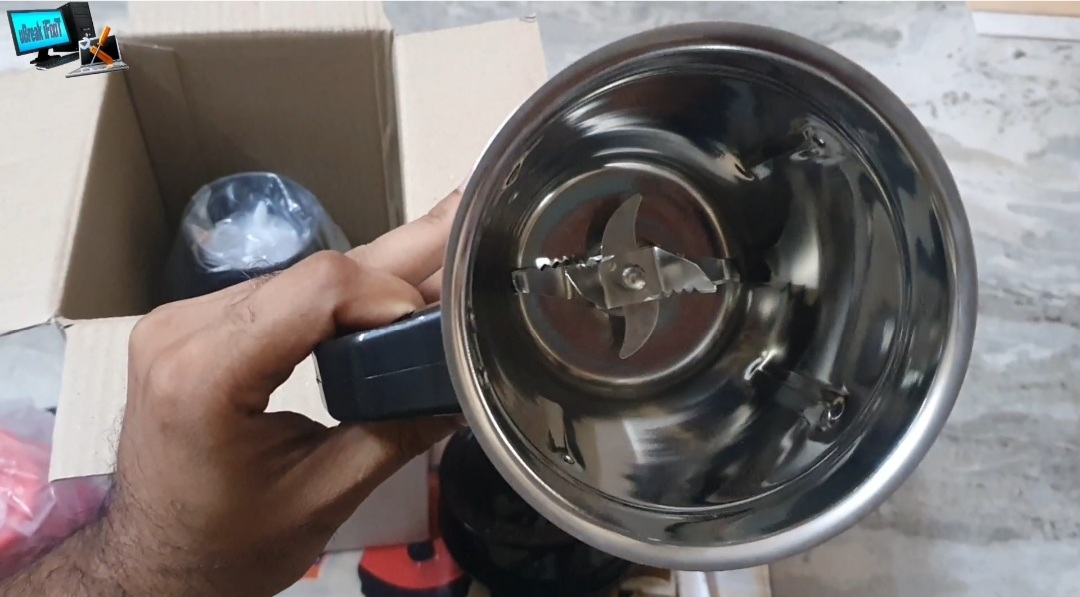
Kuchina Misi Victor 500W Review
Wednesday, 7 July 2021
Upcoming Mobile Phone
Xiaomi Poco F3 GT

Xiaomi Redmi K40


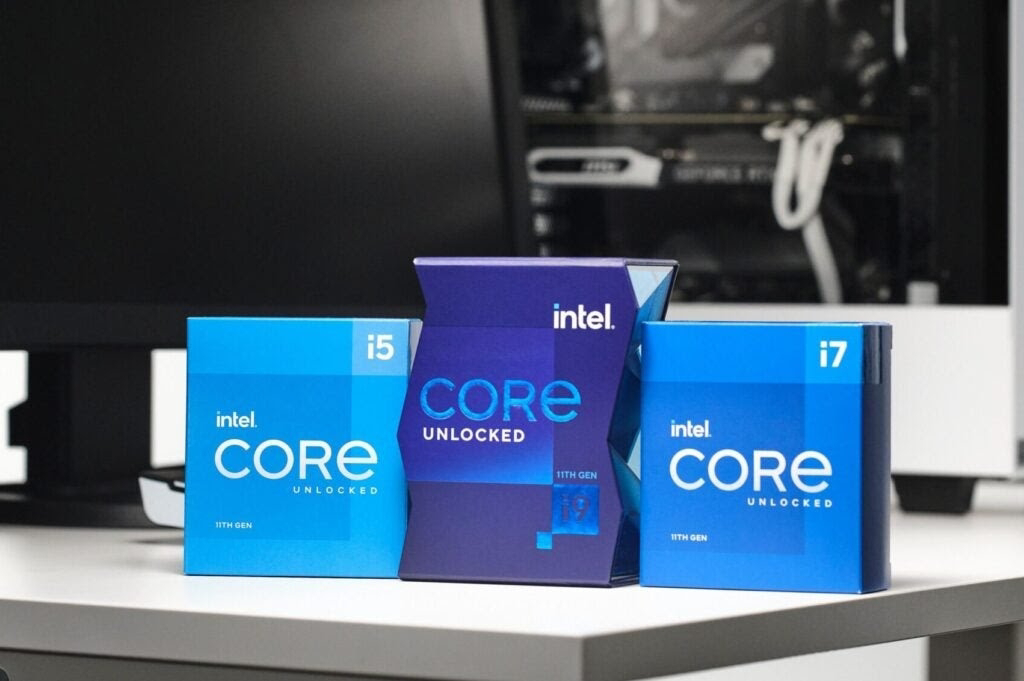
Best Intel Processor: Core i3, i5, i7 and i9 in 2021
What’s the best Intel processor?
Best Intel processor for budget gaming desktops: Intel Core i5-11400F
Consider the Intel Core i5-11400F if you want a processor for a gaming PC and have a tight budget. It doesn’t have its own GPU, so needs to be paired with a graphics card. But this saves you a little cash over the standard i5-11400.
We haven’t reviewed this processor, but the specs suggest that it probably offers the biggest proportional generation jump in performance of the 11th Gen desktop series, and is not a bad pairing even for very high-end cards like the Nvidia RTX 3080 with most games. That’s right, a £150 CPU can be paired with a GPU that costs £649-£2000, depending on timing and luck when you try to buy a graphics card.
Hardcore PC gamers would disagree, not least because the Intel Core i4-11400F is not an unlocked processor, meaning it cannot be overclocked properly. But it’s a good buy for many.
Best all-rounder performance CPU:
Intel Core i5-10600K
The Intel Core i5-10600K is the Intel CPU I am most likely to recommend to enthusiast system builders who do not have a limitless budget. It’s powerful enough to act as, at most, a mild bottleneck when paired with the most powerful graphics cards.
Performance per pound is sound, and this is a “K” series card, giving you the option to overclock substantially if you have the cooling to match. And it has baked in UHD 630 graphics. You can use it without a graphics card, handy if you’re waiting for prices to cool down a bit before buying.
Intel’s most powerful mainstream desktop CPU:
Intel Core i9-11900K
Our Computing Editor, Ryan Jones, is not a huge fan of the Intel Core i9-11900K, with good reason. It’s expensive and doesn’t match its AMD rivals for multi-threaded performance.
However, its single-core performance is excellent and you need one of these 11th Gen Intel or Ryzen 5000 chips to get PCIe 4.0 support. This is required to max-out the speed of the latest SSDs.
Some of the performance fiends out there should still consider the older Intel Core i9-10900K, though. It’s significantly cheaper and actually outperforms the newer processor in quite a few situations because it has 10 cores, to the Intel Core i9-11900K’s eight.
Best laptop CPU to look out for:
Intel Core i5-1135G7
I’ve picked the laptop Core i5 as the laptop CPU of choice, but your options are likely to determined in part by the model you choose. Not all laptops come in all varieties of processor. However, the i5-1135G7, i7-1165g7, i5-1185g7 and i7-1185g7 mobile processors are the 11th Gen laptop highlights as they have Intel Xe graphics.
These chipsets are better than the integrated GPUs of their respective desktop cousins, and let you play games once thought of as ultra-demanding on a thin and light laptop. I’m talking about titles like Kingdom Come: Deliverance and The Witcher 3, not genuine oldies like Skyrim.
Choosing between an Intel Core i3, i5, i7 and i9
An Intel Core i5 is a sensible place to start whether you plan to buy a laptop or desktop. You can’t really go wrong with an i5, particularly with the 11th generation chipsets. They have enough power for high-end gaming, intensive image editing work and video editing. And they use less power than a Core i7 or i9, which is nice.
The Core i7 is more powerful than the Core i5 series. And the Core i9 chipsets are, you guessed it, more powerful than the i7s.
Intel’s Core i3 CPUs are usually the least-discussed these days, but they still exist and are a great choice for low-cost family PCs and ultra-budget gaming desktops. However, at the time of writing you’d have to buy a 10th Gen i3-10100 as an 11th Gen Core i3 is not available (yet).
So how do you quantify the differences between an Intel Core i3 and an i9? I’m going to stay away from benchmark results and too much deep tech talk, and stick to two factors: cores and clock speed.
I can use a human analogy here. If you have more cores, you have more workers to do a job. And a higher clock speed means each of these workers can get stuff done at a quicker pace.
Some tasks, like gaming, benefit more from a few fast cores than an increased number of them. But others like video editing love a processor with lots of cores, because the applications are designed to exploit all the available CPU power. Games are, for the most part, miners of graphics card power.
Here’s a run down of the core counts, base clock speeds and turbo clock speeds of the desktop 11th Gen CPUs, for reference.
| Intel Core i5-11400 | 6 cores | 2.6GHz | 4.4GHz Turbo |
|---|---|---|---|
| Intel Core i5-11600K | 6 cores | 3.9GHz | 4.8GHz Turbo |
| Intel Core i7-11700 | 8 cores | 2.5GHz | 4.9GHz Turbo |
| Intel Core i7-11700K | 8 cores | 3.6GHz | 5GHz Turbo |
| Intel Core i9-11900K | 8 cores | 3.9GHz | 5.3GHz Turbo |
| Intel Core i3-10100 (10th Gen) | 4 cores | 3.6GHz | 4.3GHz Turbo |
In previous years we would have had to explain another term to get to the root of performance differences, hyperthreading. But all the main 11th Gen have hyperthreading.
This is where you (to torture the metaphor a little more) get to give each of the workers two jobs at at time instead of one. Those folks should unionise.
Looking a little deeper into the upgrades
Higher-end Intel processors also have more cache memory than mid-range and low-end ones. This is very fast storage used to hold the data the CPU cores are about to need. The Intel Core i3-10100 has 6MB, the Intel Core i5-11600K 12MB.
Top-spec CPUs like the Intel Core i9-11900K and Intel Core i7-11700K have 16MB. However, the last gen i9-10900K has 20MB. Intel can justify this as the newer version has fewer cores, but it’s another reason why some techies look down on the 11th Gen Core i9.
How to choose an Intel CPU: What the names mean
Choosing whether to buy a Core i5, i7 or i9 can seem pretty simple. It’s one of those “good, better, best” scenarios. But you also need to pay attention to the letters at the end of a CPU name before you head to the checkout.
Here’s what they mean.
Desktop letters
K – This means the CPU is unlocked, which is essential if you plan on overclocking. This is where you manually increase the speed of a processors cored beyond their defaults, for better performance at the cost of more heat. Gamers who pay attention to the cooling in their desktops will always want an unlocked CPU.
F – Processors with an ‘F’ at the end do not have an integrated graphics section. This means they absolutely need some form of standalone graphics card, or they won’t even be able to display Windows. Those building a gaming PC should consider one of these, as it saves you a small amount of cash, which can be spent elsewhere.
T – Most of you probably don’t want a ‘T’ CPU. These use lower clock speeds in order to consume less power. Why would you want one? They also create less heat, so are a good fit for cramped mini PCs.
Laptop letters
G – This means the CPU has its own half-decent graphics section built into the CPU. However, Intel now puts ‘G’ in stacks its Core i series laptop, making it next to meaningless without also looking at the number that follows. “G4” means a laptop has an Intel UHD graphics chip, which is pretty poor. “G7” means it has Intel Xe graphics, which are kinda great. They let you play some surprisingly demanding games
H – ‘H’ stands for high performance. These processors get you closer to desktop PC power, but also use a lot more of battery and create more heat under strain. They are used in thicker, heavier laptops that can accommodate better cooling systems. But you probably wouldn’t want to carry most of them around every day.
U – You don’t see the ‘U’ in Intel’s 11th Gen laptop CPU names. But it’s an important one to know because it was everywhere beforehand, and older processors will float around for a while. It stands for Ultra Low Voltage — battery-saving, in other words. Intel’s “G” laptop CPUs are in the same mould, made largely for thin and light laptops.
Should you go below the Core i series?
There are two rungs below the Intel Core i3 series: Pentium and Celeron.
Intel Pentium CPUs come in Gold and Silver versions. Pentium Golds are desktop CPUs, and are not a bad fit for a computer that will just be used for Office apps, video streaming and browsing. Or as part of a budget gaming PC with a low-end or lower-mid-range graphics card.
However, they only have two cores and are not close to the recommended Core i5-11600 and Core i5-11400 in performance. The G6605 is the latest Pentium Gold processor. Pentium Silver chipsets, like the N6000, are laptop processors and are only well suited to the basics. If the jump to an 11th Gen Intel Core i3 does not cost too much, make that jump.
Celerons are the weakest Intel processors, and are not recommended in general. Laptops with these processors are usually noticeably slow. You are better off spending a little more on at least a Pentium Gold in a desktop build.
Should you wait for the 12th Gen Intel series? Intel’s next generation of CPUs will offer more dramatic changes than the 11th Gen. The 12th generation of desktop CPUs is known as Alder Lake, and will use sets of ‘power’ cores and efficiency cores. This arrangement is similar the Apple M1 CPU used in the latest MacBook Air. It’s quite a dramatic change.
Where today’s Core i9 CPU has eight cores, the next will likely have 16: eight ‘big’ cores and eight ‘little’ cores. The hope is for a high-end processor that can beat the standard-setting AMD Ryzen 9 5900x/5950X, and make up some of the ground Intel has lost to Apple in the laptop space.